Ollama on Kubernetes
If you’ve already run Ollama locally, the next step is to run it on Kubernetes.
This article only details a working setup, it does not aim to deploy it for a production usage. We just want to:
- run a small model on CPU
- persist it across restarts
- understand the limitations
Prerequisites
We need:
- a Kubernetes cluster with a default StorageClass (required for PVC dynamic provisioning)
- a node with enough resources to run the model (the deployment requests 4Gi of memory and 2 CPUs)
kubectlconfigured with access to it
If you don’t have a cluster yet, you can follow the instructions from the clusters section.
Deploying Ollama
We create:
- a PVC to store the models
- a Deployment to run Ollama
- a Service to expose the API inside the cluster
The resources are defined in the following specification, which uses an initContainer that runs before the main container starts. It starts the Ollama server in the background, waits for it to be ready, then pulls the model if it is not already present on the PVC. The main container only starts once the model is there.
The pod runs as a non-root user (UID 1000). fsGroup: 1000 ensures the mounted PVC is writable by that user. The HOME environment variable is set to the mount path so Ollama writes its model data there instead of /root.
apiVersion: v1
kind: PersistentVolumeClaim
metadata:
  name: ollama-models
spec:
  accessModes:
  - ReadWriteOnce
  resources:
    requests:
      storage: 20Gi
---
apiVersion: apps/v1
kind: Deployment
metadata:
  name: ollama
spec:
  replicas: 1
  selector:
    matchLabels:
      app: ollama
  template:
    metadata:
      labels:
        app: ollama
    spec:
      securityContext:
        runAsNonRoot: true
        runAsUser: 1000
        runAsGroup: 1000
        fsGroup: 1000
      initContainers:
      - name: pull-model
        image: ollama/ollama:latest
        command: ["/bin/sh", "-c"]
        args:
        - |
          ollama serve &
          until ollama list > /dev/null 2>&1; do sleep 1; done
          ollama list | grep -q "llama3.2" || ollama pull llama3.2
        env:
        - name: HOME
          value: /home/ollama
        volumeMounts:
        - name: models
          mountPath: /home/ollama
      containers:
      - name: ollama
        image: ollama/ollama:latest
        ports:
        - containerPort: 11434
        env:
        - name: HOME
          value: /home/ollama
        volumeMounts:
        - name: models
          mountPath: /home/ollama
        resources:
          requests:
            memory: 4Gi
            cpu: "2"
          limits:
            memory: 8Gi
      volumes:
      - name: models
        persistentVolumeClaim:
          claimName: ollama-models
---
apiVersion: v1
kind: Service
metadata:
  name: ollama
spec:
  selector:
    app: ollama
  ports:
  - port: 11434
    targetPort: 11434
Then, we create the resources.
kubectl apply -f ollama.yamlThe Pod will first go through Init:0/1 while the model is downloaded.
$ kubectl get pods -l app=ollama
NAME                      READY   STATUS     RESTARTS   AGE
ollama-7d9f8b6c4d-xk2pq   0/1     Init:0/1   0          10s
Then, it switches to Running once it is ready. On subsequent restarts the initContainer skips the download since the model is already on the PVC.
$ kubectl get pods -l app=ollama
NAME                      READY   STATUS    RESTARTS   AGE
ollama-7d9f8b6c4d-xk2pq   1/1     Running   0          2m
To verify the model is available:
$ kubectl exec deploy/ollama -- ollama list
NAME               ID              SIZE    MODIFIED
llama3.2:latest    a80c4f17acd5    2.0 GB  2 minutes ago
Testing the API
Ollama exposes an HTTP API on port 11434. Use port-forwarding to reach it (this command blocks, so run it in a dedicated terminal):
kubectl port-forward svc/ollama 11434:11434Then send a request from another terminal:
curl http://localhost:11434/api/generate \
  -H "Content-Type: application/json" \
  -d '{"model":"llama3.2","prompt":"What is Kubernetes in one sentence?","stream":false}'
Ollama also exposes an OpenAI-compatible endpoint:
curl http://localhost:11434/v1/chat/completions \
  -H "Content-Type: application/json" \
  -d '{
    "model": "llama3.2",
    "messages": [{"role": "user", "content": "What is Kubernetes in one sentence?"}]
  }'
Adding a web UI
If you prefer a UI, we can add Open WebUI on top. It connects to Ollama through the Service.
The following specification defines the Open WebUI Deployment and Service. It also uses a PVC to keep data across restarts.
apiVersion: v1
kind: PersistentVolumeClaim
metadata:
  name: open-webui-data
spec:
  accessModes:
  - ReadWriteOnce
  resources:
    requests:
      storage: 2Gi
---
apiVersion: apps/v1
kind: Deployment
metadata:
  name: open-webui
spec:
  replicas: 1
  selector:
    matchLabels:
      app: open-webui
  template:
    metadata:
      labels:
        app: open-webui
    spec:
      containers:
      - name: open-webui
        image: ghcr.io/open-webui/open-webui:main
        ports:
        - containerPort: 8080
        env:
        - name: OLLAMA_BASE_URL
          value: http://ollama:11434
        volumeMounts:
        - name: data
          mountPath: /app/backend/data
      volumes:
      - name: data
        persistentVolumeClaim:
          claimName: open-webui-data
---
apiVersion: v1
kind: Service
metadata:
  name: open-webui
spec:
  selector:
    app: open-webui
  ports:
  - port: 8080
    targetPort: 8080
We create the corresponding resources.
kubectl apply -f open-webui.yamlThen, we forward the port:
kubectl port-forward svc/open-webui 3000:8080From our web browser, we can access Open WebUI at http://localhost:3000.
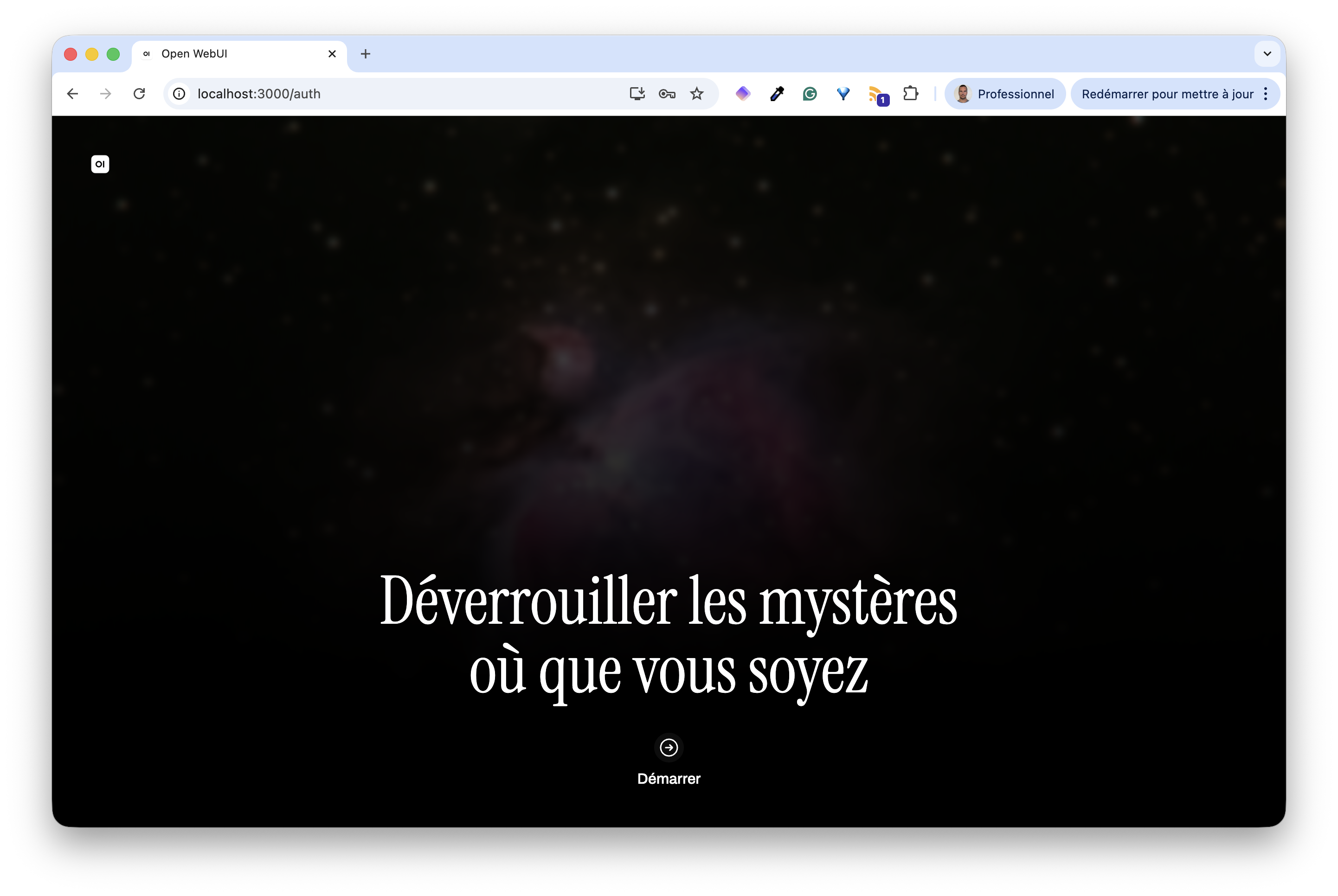
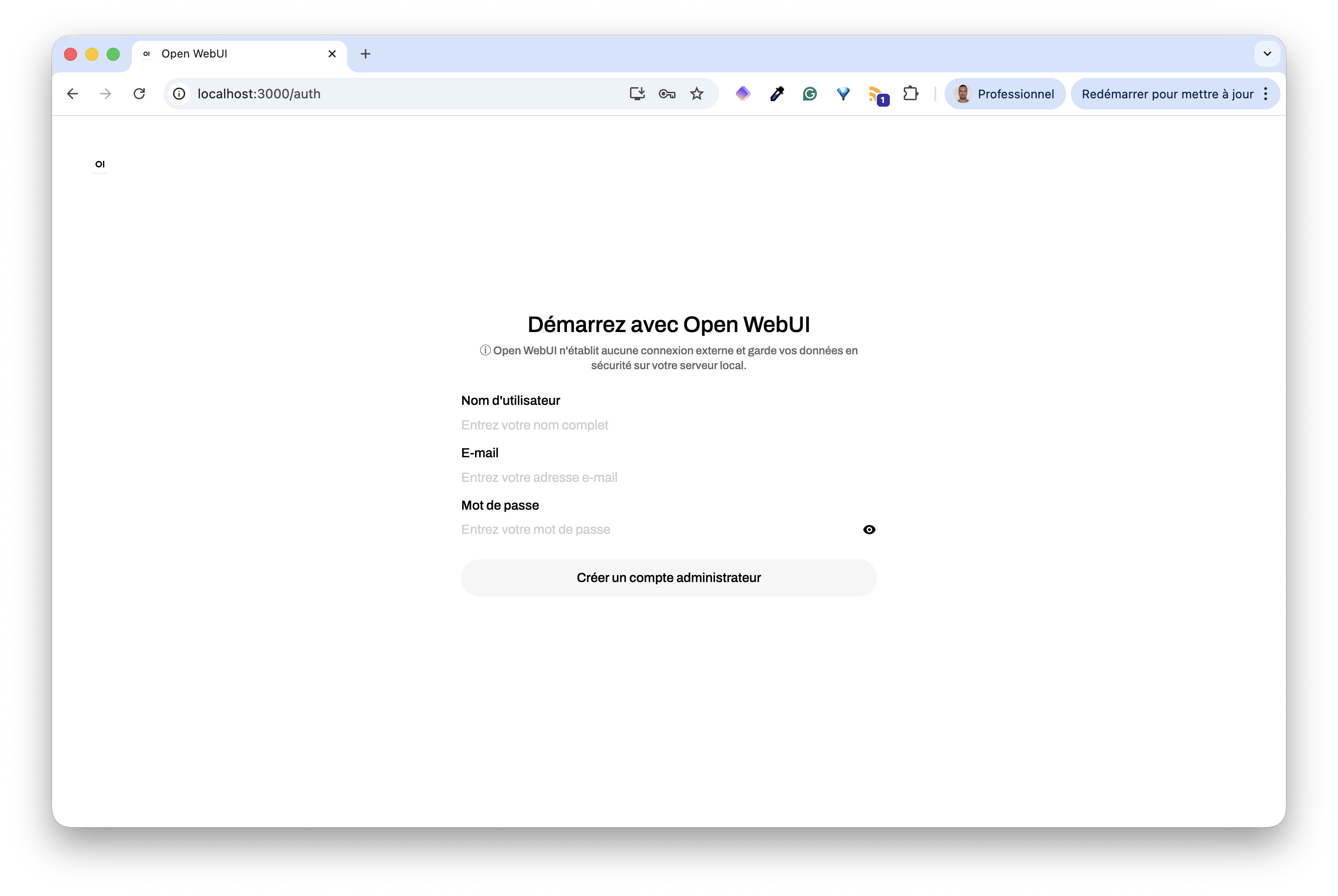
First we need to create an account.
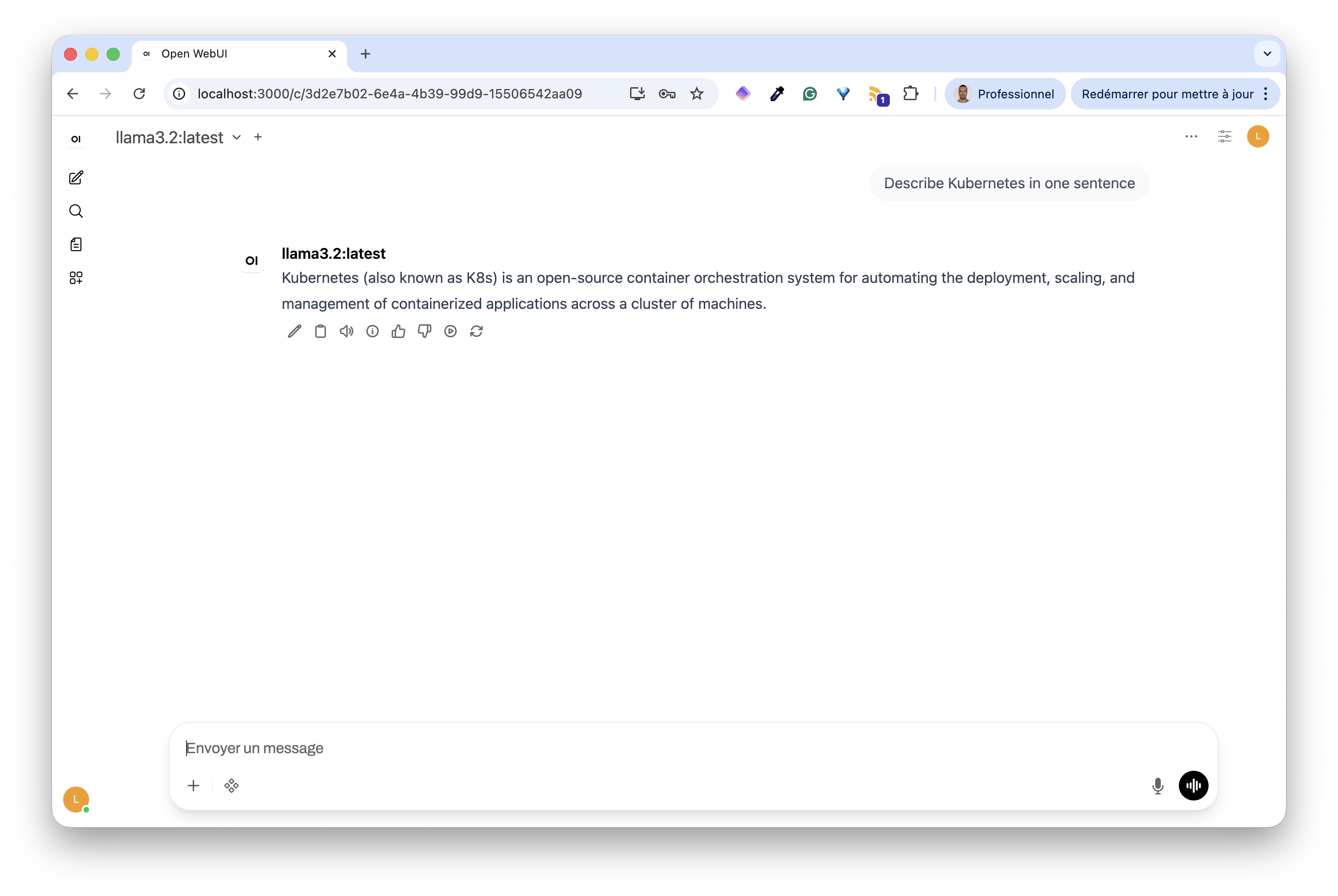
Then we can ask questions to our Llama model.
Both applications use a PersistentVolumeClaim to persist data:
Ollama stores downloaded models: the first start takes time while the initContainer pulls the model, subsequent restarts are instant
Open WebUI stores user accounts, chat history, and settings
Limitations
This configuration works, but has some limitations.
CPU inference is slow. Even with a small model, responses can take several seconds per token.
Single replica. The PVCs use ReadWriteOnce, meaning only one Pod can mount them at a time. Horizontal scaling is not straightforward with this setup.
This is perfectly fine for a demo and to understand how things fit together, but a more advanced setup would be needed to target production. This will be the subject of future content.